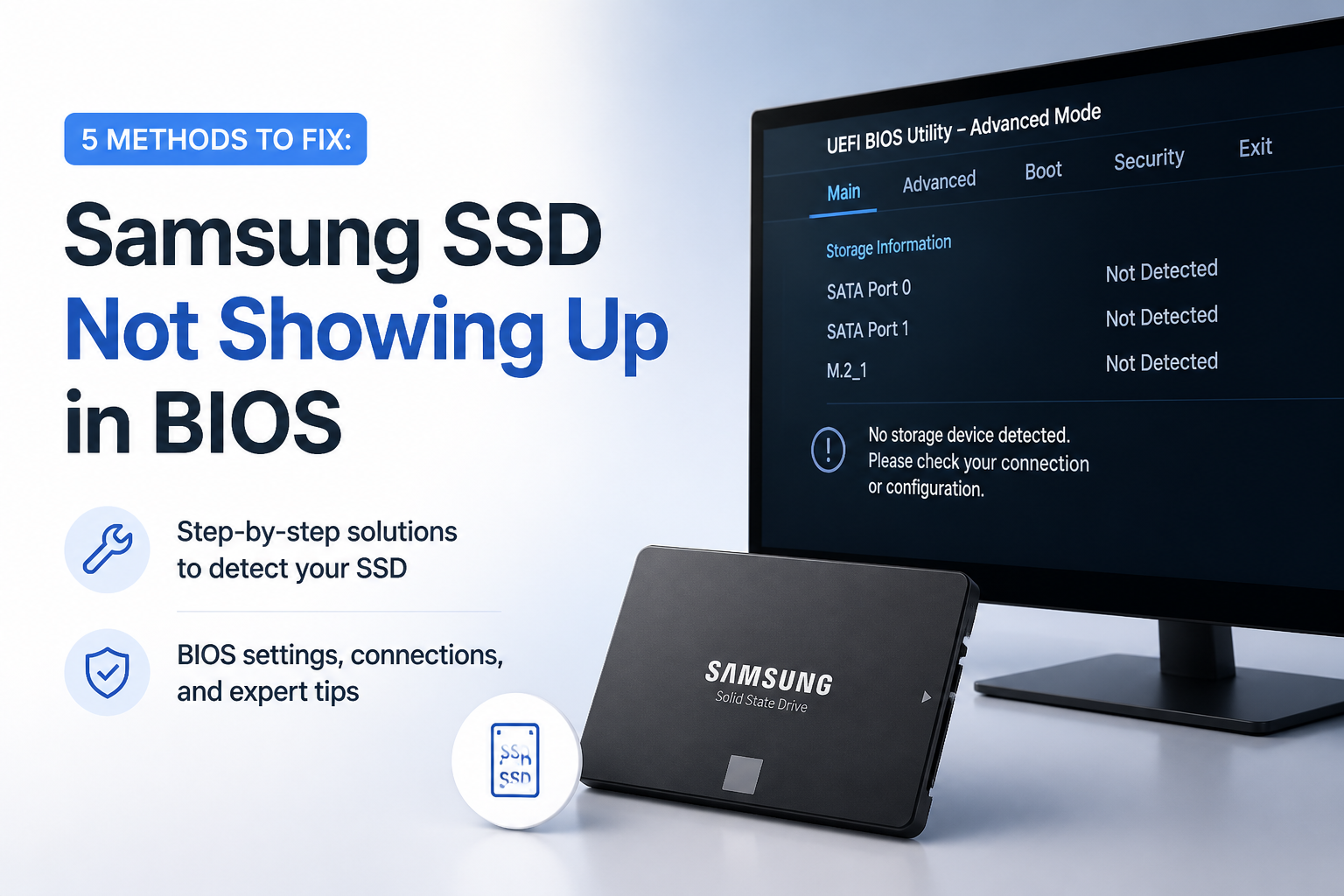
5 Methods to Fix: Samsung SSD Not Showing Up in BIOS
A missing SSD usually points to its connection, motherboard settings, slot compatibility, or hardware failure. Work through these checks in order, with data safety in mind.
Power down, reseat the Samsung SSD, then try another compatible port or cable. If it remains absent, enable the port in BIOS plus verify the storage-controller mode. Do not format or initialize the SSD if it later appears with important files missing.
Protect the data first. Do not initialize, format, Secure Erase, run CHKDSK, or update SSD firmware merely to make the drive appear. Those actions can complicate recovery. Disk Drill also cannot scan a drive that neither BIOS nor the operating system can detect.
Recover Files After SSD Detection → Disk Drill
Scans Samsung SSDs visible to Windows or macOS · Previews recoverable files · Creates byte-to-byte backup images
Top 5 Methods to Fix a Samsung SSD Missing From BIOS
01 Reseat the Samsung SSD Connection
Start here because a loose cable or poorly seated M.2 drive is more common than a dead SSD
~10 min
Reseat the Samsung SSD Connection
Start here because a loose cable or poorly seated M.2 drive is more common than a dead SSD
A Samsung SSD cannot appear in BIOS if power or data is not reaching it. Shut the computer down fully, then check the physical connection before changing firmware settings.
- Turn off the PC, unplug its power cable, then hold the power button for about 10 seconds.
- For a 2.5-inch SATA SSD, reconnect both the SATA data cable plus the power connector.
- Move the SATA data cable to another motherboard port. Replace the cable if a spare one is available.
- For an M.2 SSD, remove the retaining screw, slide the drive out, then insert it firmly at the proper angle.
- Secure the M.2 drive without overtightening its screw, reconnect power, then reopen BIOS to check the storage list.

02 Enable the Storage Port in BIOS
Useful after a BIOS reset, hardware upgrade, or move to a different M.2 slot
~5 min
Enable the Storage Port in BIOS
Useful after a BIOS reset, hardware upgrade, or move to a different M.2 slot
Some motherboards let individual SATA or M.2 ports be disabled. A shared-lane rule can also switch off one port when another slot is occupied.
- Restart the computer, then press the displayed BIOS key, commonly
Delete,F2, orF10. - Open the storage, onboard devices, SATA configuration, or NVMe configuration page.
- Confirm that the port holding the Samsung SSD is set to Enabled.
- Check for lane-sharing notes. Remove a conflicting PCIe card or move the SSD to a compatible slot if required.
- Save the changes, restart, then return to BIOS to see whether the SSD now appears.
03 Correct the SATA or NVMe Controller Mode
Best for a drive that disappeared after RAID, Intel VMD, or storage-mode changes
~10 min
Correct the SATA or NVMe Controller Mode
Best for a drive that disappeared after RAID, Intel VMD, or storage-mode changes
AHCI, RAID, legacy IDE, plus Intel VMD settings affect how storage devices are exposed. Use care here because changing the controller mode can stop an existing Windows installation from booting.
- Write down or photograph the current storage-controller setting before touching it.
- For a SATA SSD, confirm that the controller is enabled. AHCI is the usual choice for a basic non-RAID setup.
- For an NVMe SSD, inspect Intel VMD, RAID, PCIe storage, or remapping options that may hide the drive from the normal NVMe list.
- If the PC previously used RAID or VMD, restore its earlier mode rather than guessing.
- Save one change at a time, then verify both SSD detection plus normal Windows startup.
04 Reset or Update the Motherboard BIOS
Try this when the SSD works elsewhere but the current PC still cannot identify it
~20–45 min
Reset or Update the Motherboard BIOS
Try this when the SSD works elsewhere but the current PC still cannot identify it
An outdated BIOS may lack proper support for a newer SSD or contain a storage-detection bug. Loading defaults can also clear a bad configuration without changing hardware.
- Record custom settings such as boot order, fan profiles, RAID mode, Secure Boot, plus virtualization.
- Choose Load Optimized Defaults or the equivalent BIOS option, then save plus restart.
- Check whether the Samsung SSD appears before attempting an update.
- If it remains missing, find the exact PC or motherboard model printed on the device or shown in BIOS.
- Download only the BIOS package plus instructions supplied by that manufacturer, then complete its documented update process.
- Reenter BIOS after the update, restore only required settings, then check the storage list again.
05 Test the SSD Elsewhere Before Recovering Data
The final check for a failed port, incompatible slot, or damaged Samsung SSD
~30 min
Test the SSD Elsewhere Before Recovering Data
The final check for a failed port, incompatible slot, or damaged Samsung SSD
Testing the SSD on another compatible connection separates a computer problem from a drive problem. If another system detects it, copy essential files first or scan it with Disk Drill before making repairs.
- Connect the SSD to another computer, a direct motherboard port, or an enclosure that matches SATA or NVMe.
- If the drive appears, avoid formatting, initializing, Secure Erase, CHKDSK, or firmware changes until important files are safe.
- For an unstable drive, open Disk Drill, select the SSD, then create a byte-to-byte backup on a healthy disk with enough free space.
- Scan the image or stable SSD, preview a few important files, then recover selected data to a different physical drive.
- After recovery, inspect the SSD with Samsung Magician or the system's SMART tools. Replace the drive if errors, repeated disconnects, or read failures continue.
- If no computer or compatible adapter detects it, stop powering it repeatedly. Contact Samsung support for warranty service or a data-recovery lab if the files matter.
When Disk Drill Cannot Help With an Undetected Samsung SSD
Recovery software works only after the computer can communicate with the storage device. If the Samsung SSD is absent from BIOS, Windows Disk Management, macOS Disk Utility, plus Disk Drill's device list, fix the hardware-detection problem first.
A recovery lab is the safer choice when the SSD contains irreplaceable files, disconnects during reads, becomes unusually hot, or fails detection on every compatible system. Repeated power cycles can make an unstable device worse.
Which Samsung SSD BIOS Fix Should You Try?
Begin with the connection, then move toward firmware or drive testing.
| Method | Best for | Time | Success rate |
|---|---|---|---|
| 1. Reseat the Samsung SSD Connection TRY FIRST | Loose SATA cables or M.2 seating | ~10 min | ● 85% |
| 2. Enable the Storage Port in BIOS | Disabled ports or shared lanes | ~5 min | ● 72% |
| 3. Correct the SATA or NVMe Controller Mode | RAID, AHCI, or VMD changes | ~10 min | ● 65% |
| 4. Reset or Update the Motherboard BIOS | New SSDs or corrupted settings | ~20–45 min | ● 55% |
| 5. Test the SSD Elsewhere Before Recovering Data | Suspected port or SSD failure | ~30 min | ● 40% |
What to Do With a Samsung SSD That BIOS Cannot See
Reseating the Samsung SSD plus testing another compatible port is the best first move. If the connection is sound, inspect port status, lane sharing, controller mode, then motherboard firmware.
Once the SSD becomes visible to the operating system, use Disk Drill to scan or image it before repairs if files are missing. A drive that stays undetected across multiple computers likely needs warranty replacement or professional recovery rather than more software.
Change one thing at a time, keep notes on the original BIOS settings, then secure important files the moment the SSD becomes readable.